> ## Documentation Index
> Fetch the complete documentation index at: https://docs.devin.ai/llms.txt
> Use this file to discover all available pages before exploring further.
# JetBrains
> Run Devin inside JetBrains IDEs from AI Chat using the Agent Client Protocol (ACP), including JetBrains Remote Development.
JetBrains IDEs can run Devin as an agent inside **AI Chat** using the
[Agent Client Protocol (ACP)](https://agentclientprotocol.com/). The quickest way to
add Devin is to install it from the **ACP Registry**; you can also configure it
manually as a custom agent. Either way, you can drive Devin from the AI Chat panel in
IntelliJ IDEA, PyCharm, GoLand, and other JetBrains IDEs — including over
[JetBrains Remote Development](https://www.jetbrains.com/remote-development/).
This integration uses JetBrains' built-in ACP support in AI Assistant. For the
upstream reference, see the JetBrains docs on
[adding a custom agent](https://www.jetbrains.com/help/ai-assistant/acp.html#add-custom-agent).
**Coming from the Windsurf JetBrains plugin?** The
[Windsurf JetBrains plugin](/windsurf/plugins/getting-started#jetbrains-local) is in
maintenance mode, Cascade is being deprecated, and newer JetBrains
IDE releases can break the legacy plugin. Devin over ACP is the recommended way to use
Devin in JetBrains IDEs going forward; follow the setup steps below.
## Prerequisites
* A JetBrains IDE with the **AI Assistant** plugin and AI Chat available.
## Setup
Install Devin directly from the **ACP Registry** — no CLI installation or manual
configuration required.
Click the **AI Chat** icon in the right-hand tool window bar.
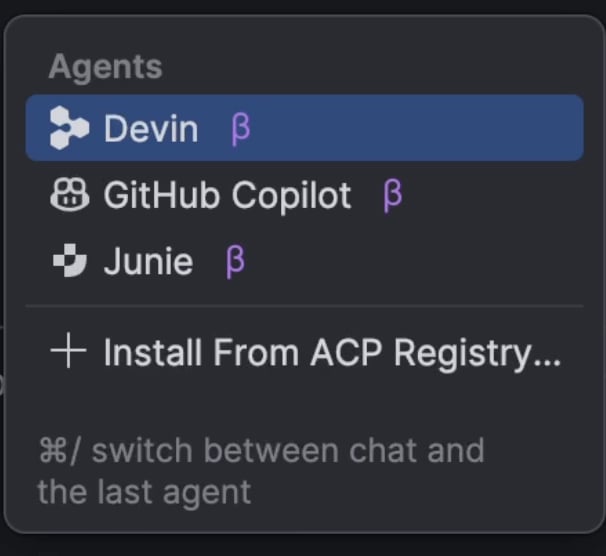
 Click the agent selector in the AI Chat footer to see the list of available
agents.
Choose **Install From ACP Registry...**, search for **Devin**, and click
**Install**. Devin is added to the list of available agents.
Click the agent selector in the AI Chat footer to see the list of available
agents.
Choose **Install From ACP Registry...**, search for **Devin**, and click
**Install**. Devin is added to the list of available agents.
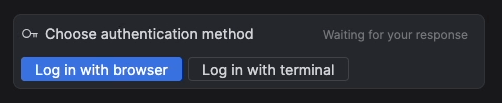
 The first time you connect, you may be prompted to authenticate. Follow the
prompt to log in to your Devin account.
The first time you connect, you may be prompted to authenticate. Follow the
prompt to log in to your Devin account.
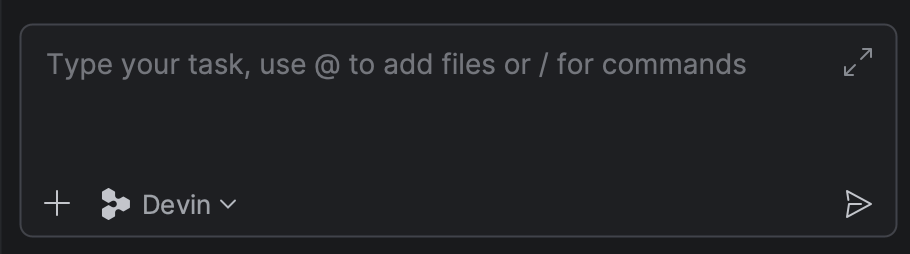
 Select **Devin** in the agent selector and send a message to start a session.
 ## Manual setup (custom ACP)
If you'd rather run Devin from your own installation of the Devin CLI, you can add it
as a custom ACP agent instead of installing from the registry.
### Prerequisites
* Devin CLI installed and authenticated. If you haven't installed it yet, follow
the [Quickstart](/cli/index), then run `devin auth login`.
* The absolute path to the `devin` binary. You can find it with:
```bash theme={null}
which devin
```
This typically resolves to something like `~/.local/bin/devin`.
For **JetBrains Remote Development**, Devin CLI must be installed on the **remote
host** (where the backend runs), not on your local client. Run `which devin` in a
terminal on the remote host and use that path in the configuration below.
Click the **AI Chat** icon in the right-hand tool window bar.
Click the three-dots menu in the top-right of the AI Chat panel, then choose
**Add Custom Agent**. This opens the `acp.json` configuration file.
## Manual setup (custom ACP)
If you'd rather run Devin from your own installation of the Devin CLI, you can add it
as a custom ACP agent instead of installing from the registry.
### Prerequisites
* Devin CLI installed and authenticated. If you haven't installed it yet, follow
the [Quickstart](/cli/index), then run `devin auth login`.
* The absolute path to the `devin` binary. You can find it with:
```bash theme={null}
which devin
```
This typically resolves to something like `~/.local/bin/devin`.
For **JetBrains Remote Development**, Devin CLI must be installed on the **remote
host** (where the backend runs), not on your local client. Run `which devin` in a
terminal on the remote host and use that path in the configuration below.
Click the **AI Chat** icon in the right-hand tool window bar.
Click the three-dots menu in the top-right of the AI Chat panel, then choose
**Add Custom Agent**. This opens the `acp.json` configuration file.
 Add Devin to the `agent_servers` block in `acp.json`. Set `command` to the
absolute path of your `devin` binary (from `which devin`) and pass `acp` as
the only argument:
```json acp.json theme={null}
{
"default_mcp_settings": {},
"agent_servers": {
"devin": {
"command": "/home/you/.local/bin/devin",
"args": ["acp"]
}
}
}
```
Save the file. Devin now appears as a selectable agent in AI Chat.
Select **devin** as the agent in AI Chat and send a message to start a
session. The first time you connect, you may be prompted to authenticate;
Devin uses the credentials from `devin auth login` (or `WINDSURF_API_KEY` if
set).
## Managing the integration
The three-dots menu in the AI Chat panel includes a few helpful actions for the
Devin agent:
* **Reset ACP Authentication** — clear stored ACP credentials and re-authenticate.
* **Get ACP Logs** — open the ACP logs, useful for debugging connection issues or
inspecting what the agent is doing under the hood.
## Notes and limitations
* Devin's slash commands are advertised over ACP, so they appear in JetBrains AI
Chat's own command palette — see
[Slash commands in ACP hosts](/cli/reference/commands#slash-commands-in-acp-hosts).
* Devin CLI's terminal/shell output is surfaced through JetBrains AI Chat's ACP
rendering, which differs from the native Devin CLI terminal UI. Some richer
interactions are only available in the standalone CLI.
* The `devin acp` subcommand is intended to be launched by an ACP-aware client
(like JetBrains AI Chat) as a subprocess — it speaks JSON-RPC over stdio and is
not meant to be run interactively. See
[`devin acp`](/cli/reference/commands#devin-acp) in the command reference.
This documentation is built and hosted on [Mintlify](https://mintlify.com), a developer documentation platform.
Add Devin to the `agent_servers` block in `acp.json`. Set `command` to the
absolute path of your `devin` binary (from `which devin`) and pass `acp` as
the only argument:
```json acp.json theme={null}
{
"default_mcp_settings": {},
"agent_servers": {
"devin": {
"command": "/home/you/.local/bin/devin",
"args": ["acp"]
}
}
}
```
Save the file. Devin now appears as a selectable agent in AI Chat.
Select **devin** as the agent in AI Chat and send a message to start a
session. The first time you connect, you may be prompted to authenticate;
Devin uses the credentials from `devin auth login` (or `WINDSURF_API_KEY` if
set).
## Managing the integration
The three-dots menu in the AI Chat panel includes a few helpful actions for the
Devin agent:
* **Reset ACP Authentication** — clear stored ACP credentials and re-authenticate.
* **Get ACP Logs** — open the ACP logs, useful for debugging connection issues or
inspecting what the agent is doing under the hood.
## Notes and limitations
* Devin's slash commands are advertised over ACP, so they appear in JetBrains AI
Chat's own command palette — see
[Slash commands in ACP hosts](/cli/reference/commands#slash-commands-in-acp-hosts).
* Devin CLI's terminal/shell output is surfaced through JetBrains AI Chat's ACP
rendering, which differs from the native Devin CLI terminal UI. Some richer
interactions are only available in the standalone CLI.
* The `devin acp` subcommand is intended to be launched by an ACP-aware client
(like JetBrains AI Chat) as a subprocess — it speaks JSON-RPC over stdio and is
not meant to be run interactively. See
[`devin acp`](/cli/reference/commands#devin-acp) in the command reference.
This documentation is built and hosted on [Mintlify](https://mintlify.com), a developer documentation platform.