> ## Documentation Index
> Fetch the complete documentation index at: https://docs.devin.ai/llms.txt
> Use this file to discover all available pages before exploring further.
# Devin Desktop Teams and Enterprise setup
> Set up Devin Desktop Teams and Enterprise plans with team management, SSO, analytics, user groups, and priority support for your organization.
Devin Desktop scales from solo projects to large-scale enterprise codebases. Our Teams and Enterprise plans unlock collaboration features such as team management, analytics, and priority support.
Single Sign-On (SSO) is not available as a new Teams add-on. If your organization requires SSO, [contact our sales team about Enterprise](https://windsurf.com/enterprise/contact).
## Setup
Visit [windsurf.com/pricing](https://windsurf.com/pricing) and select the `Teams` or `Enterprise` tier.
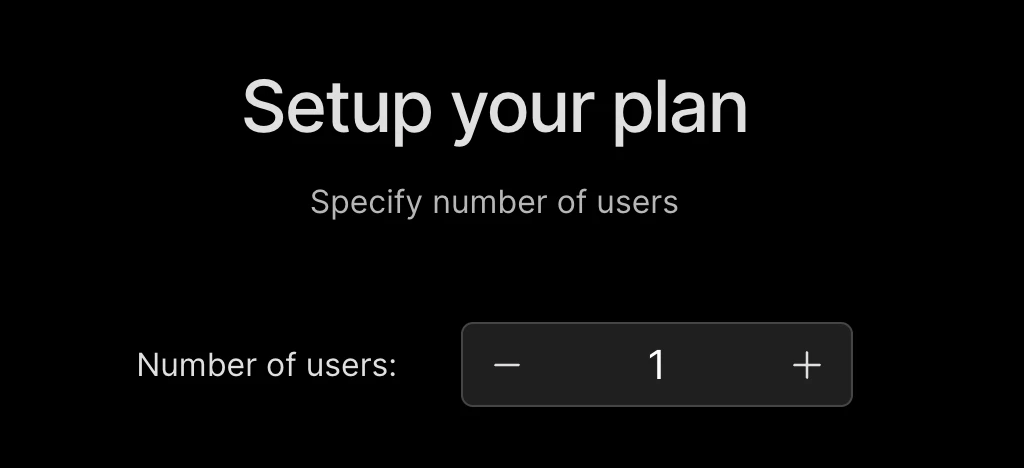
Enter the number of users you want to include in the subscription.
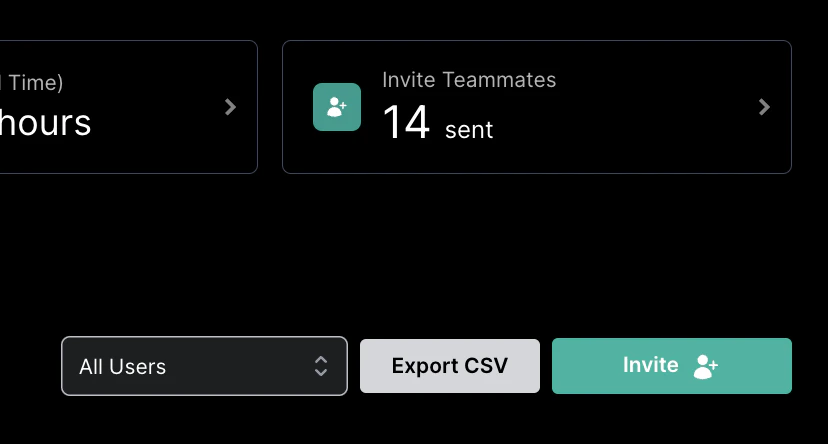
 Devin Desktop makes managing your team easy from one dashboard.
To add members to your team, first navigate to the [invite page](https://windsurf.com/team/members).
Simply click on the "invite" button and then either add via email or share a unique invite link.
Configurable settings for your team.
Select and approve models, MCP servers, service keys, role management, and more, depending on your plan.
Set up SSO, SCIM, Duo, or PingID for your Enterprise team.
**Legacy Teams SSO:** Existing Teams customers that already have the SSO add-on retain support. Team admins can manage their existing SSO configuration in [Team Settings](https://windsurf.com/team/settings).
## Manage Team
You must be a team admin to make changes to the team.
To add or remove members from your team, navigate to the [Manage team page](https://windsurf.com/team/members).
From here, you can invite and view your team, update the number of seats in your team, or even cancel or switch your plan.
Devin Desktop makes managing your team easy from one dashboard.
To add members to your team, first navigate to the [invite page](https://windsurf.com/team/members).
Simply click on the "invite" button and then either add via email or share a unique invite link.
Configurable settings for your team.
Select and approve models, MCP servers, service keys, role management, and more, depending on your plan.
Set up SSO, SCIM, Duo, or PingID for your Enterprise team.
**Legacy Teams SSO:** Existing Teams customers that already have the SSO add-on retain support. Team admins can manage their existing SSO configuration in [Team Settings](https://windsurf.com/team/settings).
## Manage Team
You must be a team admin to make changes to the team.
To add or remove members from your team, navigate to the [Manage team page](https://windsurf.com/team/members).
From here, you can invite and view your team, update the number of seats in your team, or even cancel or switch your plan.
 ## User Groups
This feature is only available in Enterprise plans and for legacy Teams customers with SSO enabled.
Devin Desktop now supports creating user groups. For each group you can now view analytics per group. You can also configure group administrators who can view analytics for the specific groups they manage.
### Existing Subscription
Already subscribed on Pro and want to upgrade? Head to your [Plan Management](https://windsurf.com/subscription/manage-plan), click `Switch Plan`, and select the appropriate Teams or Enterprise plan.
This documentation is built and hosted on [Mintlify](https://mintlify.com), a developer documentation platform.
## User Groups
This feature is only available in Enterprise plans and for legacy Teams customers with SSO enabled.
Devin Desktop now supports creating user groups. For each group you can now view analytics per group. You can also configure group administrators who can view analytics for the specific groups they manage.
### Existing Subscription
Already subscribed on Pro and want to upgrade? Head to your [Plan Management](https://windsurf.com/subscription/manage-plan), click `Switch Plan`, and select the appropriate Teams or Enterprise plan.
This documentation is built and hosted on [Mintlify](https://mintlify.com), a developer documentation platform.