> ## Documentation Index
> Fetch the complete documentation index at: https://docs.devin.ai/llms.txt
> Use this file to discover all available pages before exploring further.
# Using Playbooks
> Attach Devin playbooks to a session with a macro, refine them as Devin runs, and browse Organization, Enterprise, and System playbooks in Settings.
## How to use Playbooks
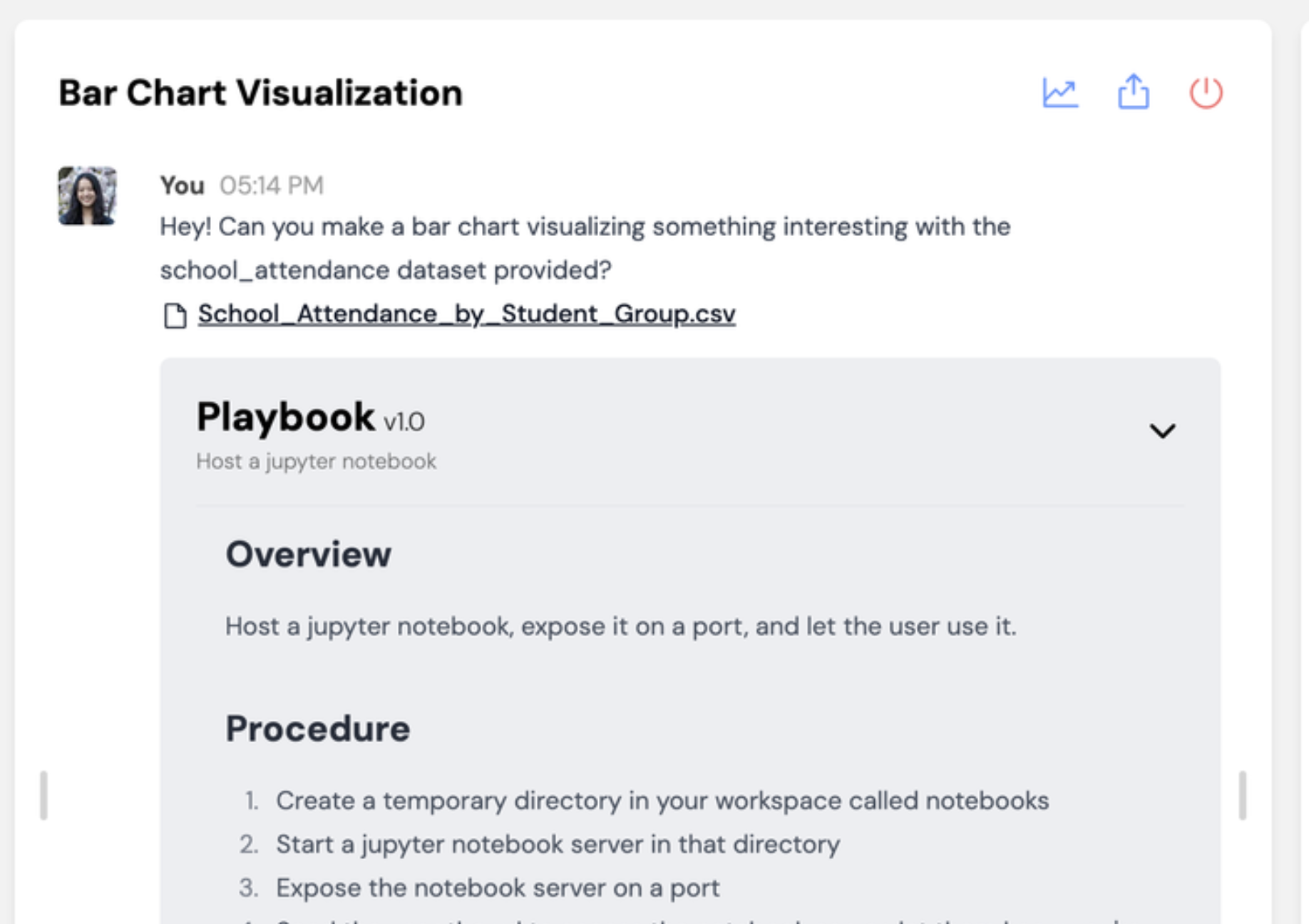
To use playbooks simply select one of the playbooks available to you: your organization's playbooks, your enterprise's playbooks, or Devin's System playbooks. You've successfully attached a playbook if you see a blue pill appear, along with an inline component for editing the playbook before starting your session.
### Using macros
If a playbook has a **macro** assigned (e.g., `!data-tutorial`), you can quickly attach it by typing the macro name in the prompt input box. This is a convenient shortcut when you know the macro identifier for the playbook you want to use.
Once you start the session, you should see your playbook show up with a grey background in the chat with Devin!
 ## Refining Playbooks
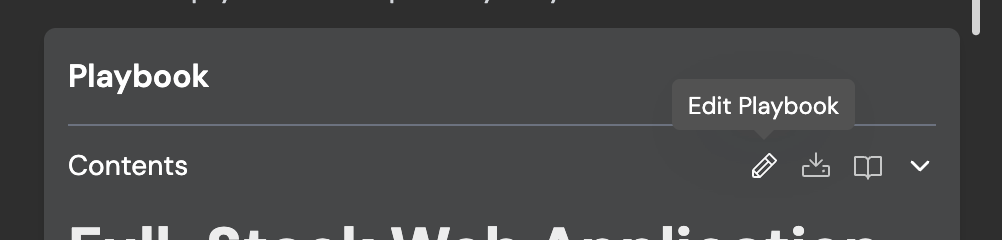
As you run a new playbook with Devin, you'll identify opportunities to improve the instructions so that Devin can complete the task more reliably. Here are some helpful features for **iterating on playbooks live**:
## Refining Playbooks
As you run a new playbook with Devin, you'll identify opportunities to improve the instructions so that Devin can complete the task more reliably. Here are some helpful features for **iterating on playbooks live**:
 ## Browsing Playbooks
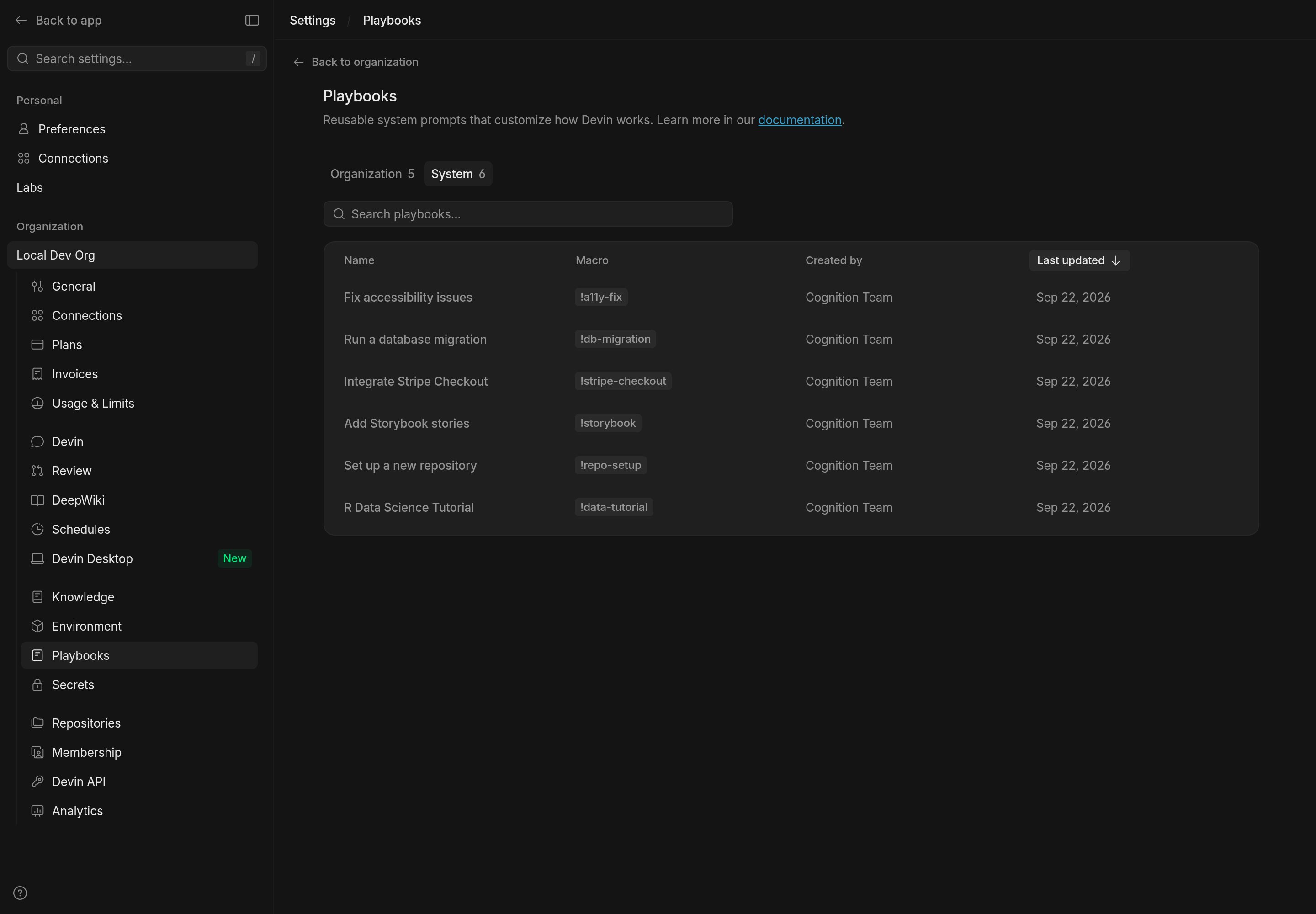
Browse and manage playbooks at [Settings > Playbooks](https://app.devin.ai/settings/playbooks). The page groups playbooks into tabs:
* **Organization**: playbooks shared within your current organization.
* **Enterprise**: playbooks shared across every organization in your enterprise. This tab appears at the enterprise level; from an organization, use the **Looking for enterprise playbooks?** link to open them.
* **System**: playbooks provided by Devin, available to everyone.
Each tab lists playbooks with their name, macro, creator, and last-updated date, and includes a search box. If you have permission to manage playbooks in that tab, click **Create playbook** to add a new one.
## Browsing Playbooks
Browse and manage playbooks at [Settings > Playbooks](https://app.devin.ai/settings/playbooks). The page groups playbooks into tabs:
* **Organization**: playbooks shared within your current organization.
* **Enterprise**: playbooks shared across every organization in your enterprise. This tab appears at the enterprise level; from an organization, use the **Looking for enterprise playbooks?** link to open them.
* **System**: playbooks provided by Devin, available to everyone.
Each tab lists playbooks with their name, macro, creator, and last-updated date, and includes a search box. If you have permission to manage playbooks in that tab, click **Create playbook** to add a new one.
 This documentation is built and hosted on [Mintlify](https://mintlify.com), a developer documentation platform.