> ## Documentation Index
> Fetch the complete documentation index at: https://docs.devin.ai/llms.txt
> Use this file to discover all available pages before exploring further.
# Welcome to Windsurf Plugins
> Install and set up the Windsurf Plugin for JetBrains IDEs, including remote development environments, with AI-powered coding assistance.
**Windsurf Plugins** bring AI-powered coding assistance to JetBrains IDEs.
Get started with your team!
}
href="/windsurf/plugins/cascade/cascade-overview"
>
Windsurf's coding agent.
Credits and usage.
Models available for use.
## JetBrains (Local)
**The Windsurf JetBrains plugin is in maintenance mode** and Cascade is being deprecated. Newer JetBrains IDE releases can break the legacy plugin. We recommend switching to Devin over ACP — see the [JetBrains ACP setup guide](/cli/acp/jetbrains).
These steps do not apply for enterprises on a self-hosted plan.
If you are an enterprise user, please refer to the instructions in your enterprise portal.
For remote development environments, use the [Devin ACP](/cli/acp/jetbrains) in Jetbrains IDEs instead.
Open the `Plugins` menu in your JetBrains IDE. The shortcut for this is `⌘+,` on Mac and `Ctrl+,` on Linux/Windows. It is also accessible from the settings menu.
Search for the Windsurf plugin, and install it. The plugin loader will prompt you to restart the IDE.
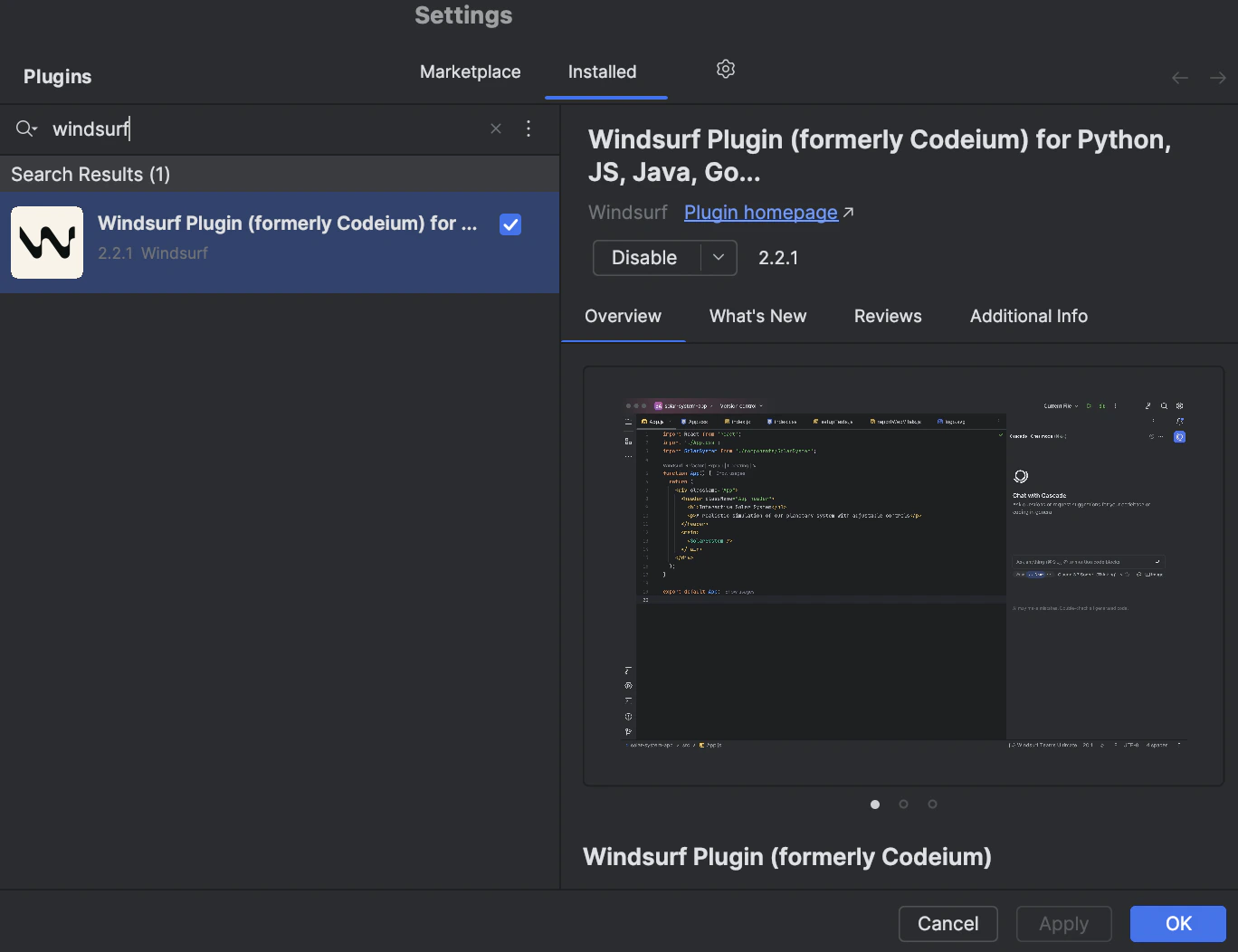 Upon successful installation, Windsurf will begin downloading a language server.
This is the program that communicates with our APIs to let you use Windsurf's AI features.
The download usually takes ten to twenty seconds, but the download speed may depend on your internet connection.
In the meantime, you are free to use your IDE as usual.
You should see a notification on the bottom right to indicate the progress of the download.
Upon successful installation, Windsurf will begin downloading a language server.
This is the program that communicates with our APIs to let you use Windsurf's AI features.
The download usually takes ten to twenty seconds, but the download speed may depend on your internet connection.
In the meantime, you are free to use your IDE as usual.
You should see a notification on the bottom right to indicate the progress of the download.
 Open a project. Windsurf will prompt you to sign in with a notification popup at the bottom right linking you to a login page.
Equivalently, click the widget at the right of the bottom status bar and select the login option there.
Open a project. Windsurf will prompt you to sign in with a notification popup at the bottom right linking you to a login page.
Equivalently, click the widget at the right of the bottom status bar and select the login option there.
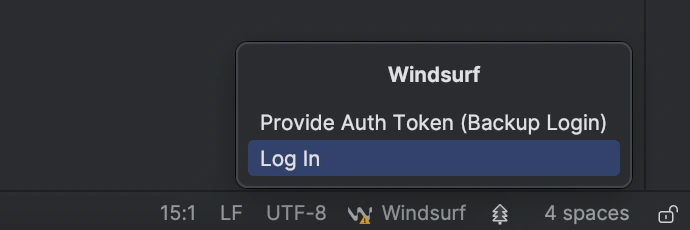 If you're not already signed in, you'll be prompted to sign in or create an account.
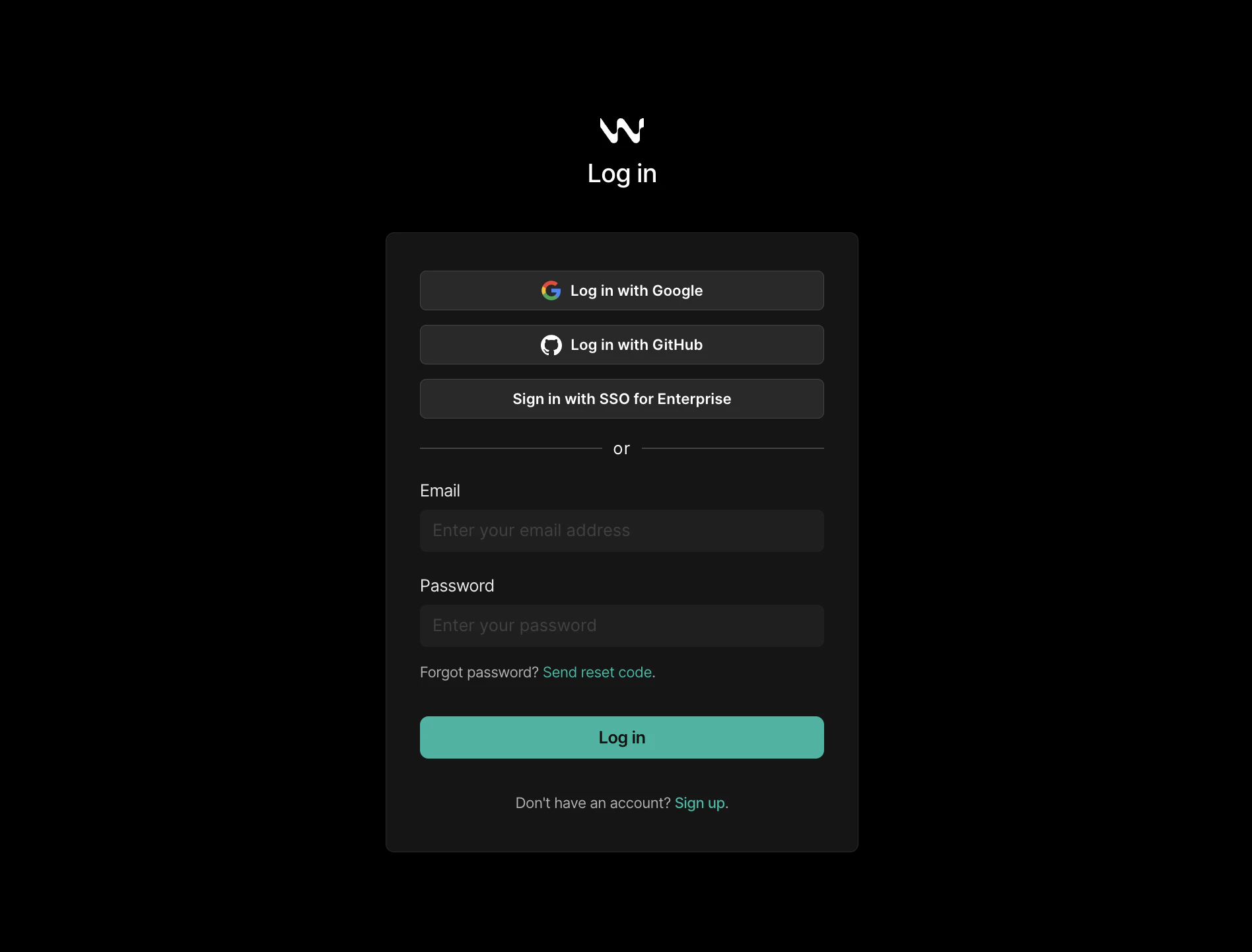 Once you've signed in, the webpage will indicate that you can return to your IDE.
 You're all set. Windsurf's AI features — Autocomplete, Chat, Command, and more — are now available.
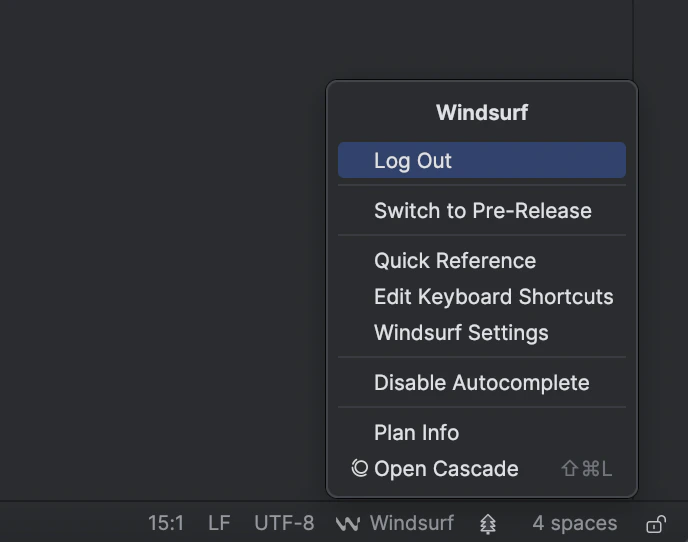
At any point, you can check your status by clicking the status bar widget at the bottom right.
If signed in, you will have access to your Windsurf settings and other controls.
If you'd like early access to new features, click on "Switch to Pre-Release"
to try out the [latest pre-release version](https://plugins.jetbrains.com/plugin/20540-windsurf-plugin-for-python-js-java-go--/versions/pre-release)
of the plugin.
You're all set. Windsurf's AI features — Autocomplete, Chat, Command, and more — are now available.
At any point, you can check your status by clicking the status bar widget at the bottom right.
If signed in, you will have access to your Windsurf settings and other controls.
If you'd like early access to new features, click on "Switch to Pre-Release"
to try out the [latest pre-release version](https://plugins.jetbrains.com/plugin/20540-windsurf-plugin-for-python-js-java-go--/versions/pre-release)
of the plugin.
 ### Remote Development
**This plugin is no longer maintained.** We highly recommend using the [Devin ACP](/cli/acp/jetbrains) in Jetbrains IDEs instead.
For JetBrains IDEs used in remote development environments, you need to use the separate "Windsurf (Remote Development)" plugin.
#### Requirements
* JetBrains IDE version 2025.1.3 or greater
#### Installation Steps
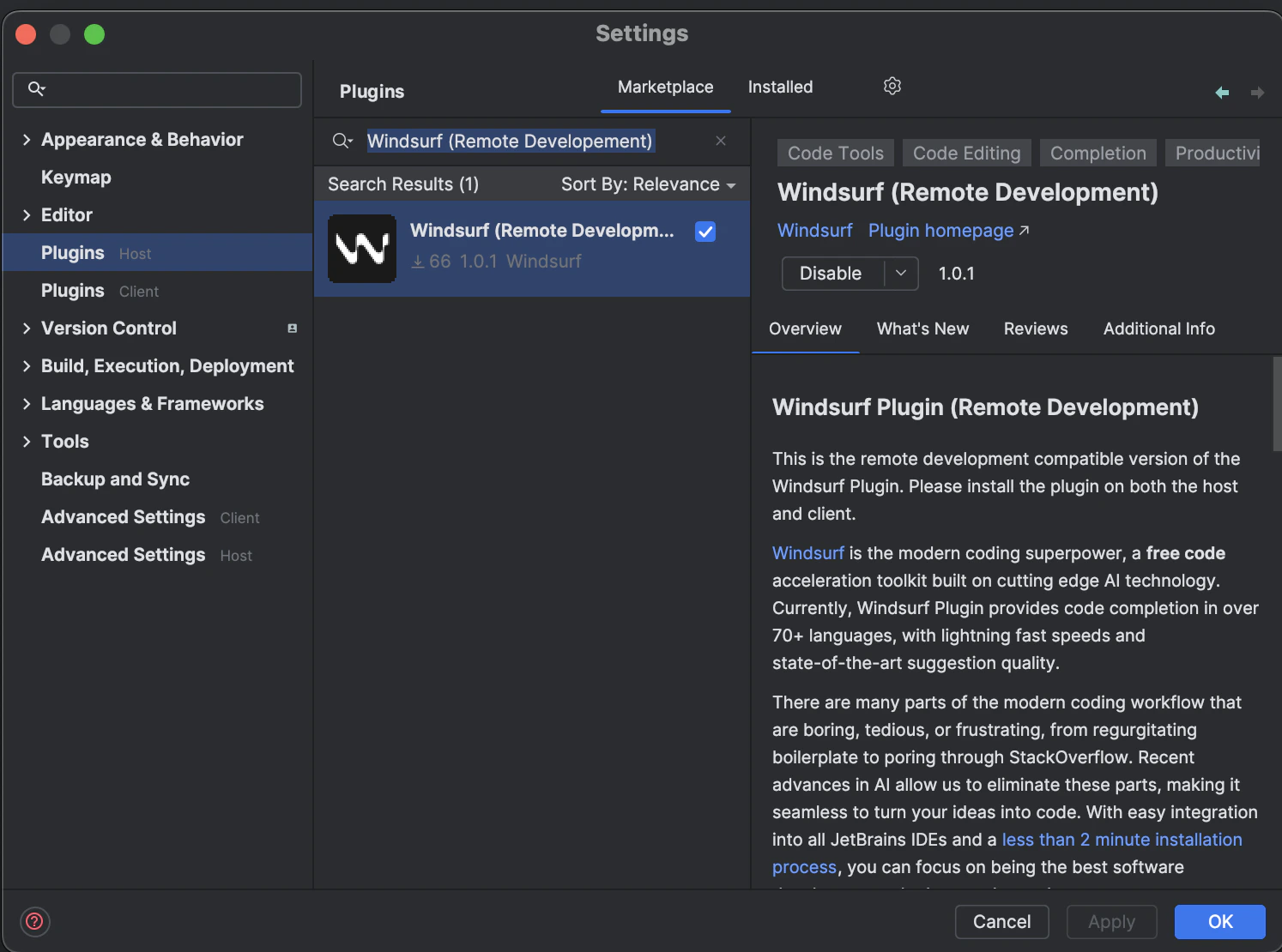
Open the `Plugins (Host)` menu in your JetBrains IDE. The shortcut for this is `⌘+,` on Mac and `Ctrl+,` on Linux/Windows. It is also accessible from the settings menu.
Search for **"Windsurf (Remote Development)"** and install it.
Restart your IDE when prompted.
### Remote Development
**This plugin is no longer maintained.** We highly recommend using the [Devin ACP](/cli/acp/jetbrains) in Jetbrains IDEs instead.
For JetBrains IDEs used in remote development environments, you need to use the separate "Windsurf (Remote Development)" plugin.
#### Requirements
* JetBrains IDE version 2025.1.3 or greater
#### Installation Steps
Open the `Plugins (Host)` menu in your JetBrains IDE. The shortcut for this is `⌘+,` on Mac and `Ctrl+,` on Linux/Windows. It is also accessible from the settings menu.
Search for **"Windsurf (Remote Development)"** and install it.
Restart your IDE when prompted.
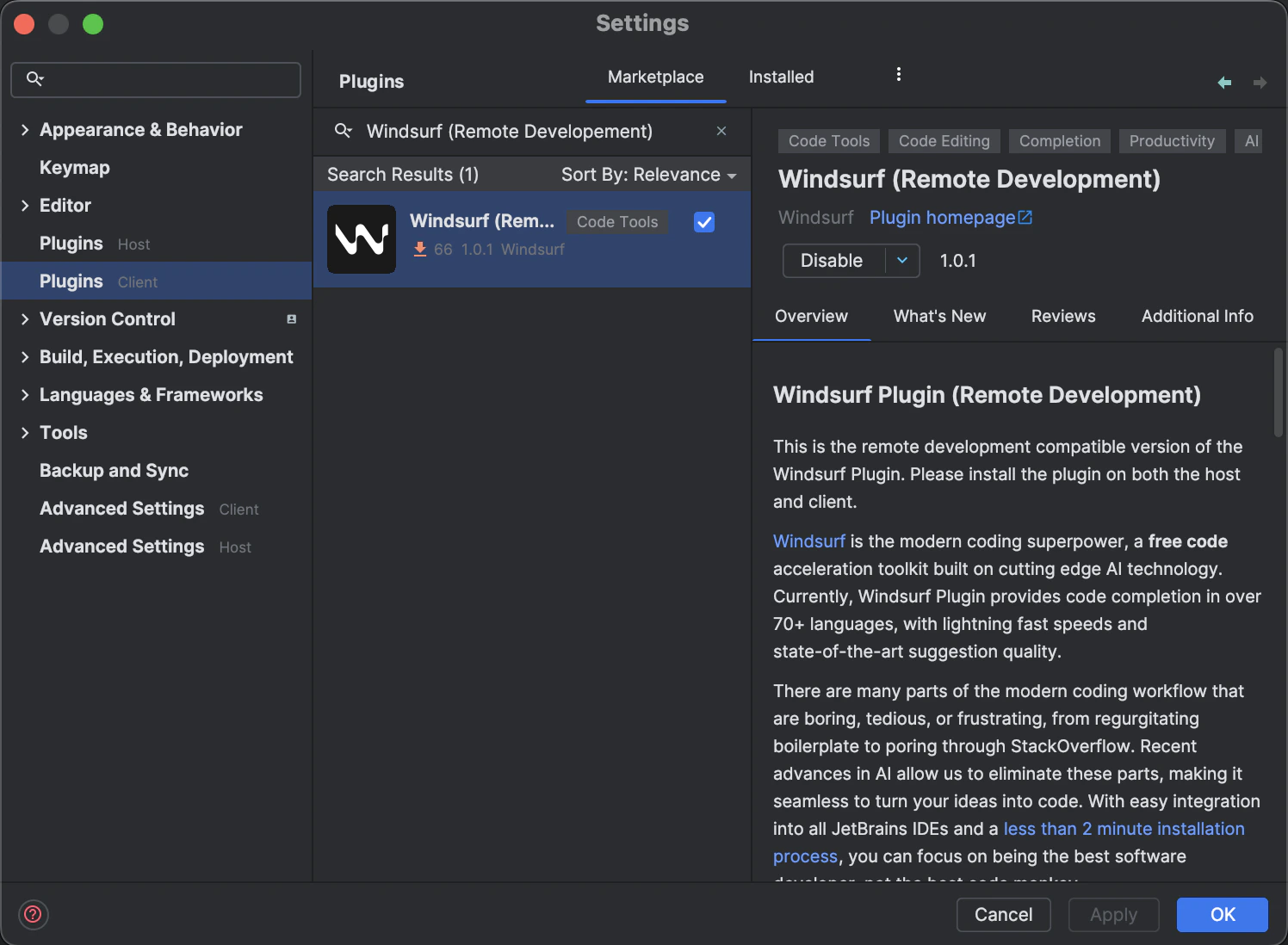
 Open the `Plugins (Client)` menu and search for **"Windsurf (Remote Development)"**.
Install the plugin and restart the IDE again.
Open the `Plugins (Client)` menu and search for **"Windsurf (Remote Development)"**.
Install the plugin and restart the IDE again.
 After installing the plugin on the host, Windsurf will begin downloading a language server.
This is the program that communicates with our APIs to let you use Windsurf's AI features.
The download usually takes ten to twenty seconds, but the download speed may depend on your internet connection.
In the meantime, you are free to use your IDE as usual.
You should see a notification on the bottom right to indicate the progress of the download.
After the language server download is completed, Windsurf will prompt you to sign in with a notification popup at the bottom right linking you to a login page.
Equivalently, click the widget at the right of the bottom status bar and select the login option there.
If you're not already signed in, you'll be prompted to sign in or create an account.
Once you've signed in, the webpage will indicate that you can return to your IDE.
You're all set. Windsurf's AI features are now available in your remote environment.
This documentation is built and hosted on [Mintlify](https://mintlify.com), a developer documentation platform.
After installing the plugin on the host, Windsurf will begin downloading a language server.
This is the program that communicates with our APIs to let you use Windsurf's AI features.
The download usually takes ten to twenty seconds, but the download speed may depend on your internet connection.
In the meantime, you are free to use your IDE as usual.
You should see a notification on the bottom right to indicate the progress of the download.
After the language server download is completed, Windsurf will prompt you to sign in with a notification popup at the bottom right linking you to a login page.
Equivalently, click the widget at the right of the bottom status bar and select the login option there.
If you're not already signed in, you'll be prompted to sign in or create an account.
Once you've signed in, the webpage will indicate that you can return to your IDE.
You're all set. Windsurf's AI features are now available in your remote environment.
This documentation is built and hosted on [Mintlify](https://mintlify.com), a developer documentation platform.