

This integration uses Zed’s built-in support for external ACP agents. For the
upstream reference, see the Zed docs on
external agents.
Setup
1
Install Devin
Open the ACP registry with
zed: acp registry from the command palette (Cmd+Shift+P on macOS and Ctrl+Shift+P on Windows). Search for “Devin” and install it.2
Select Devin in the Threads Sidebar
On the top left corner of the Threads Sidebar, click on the agent dropdown menu and select “Devin”.
3
Authenticate
In the new Devin thread, open the agent menu in the top right corner and select “Authenticate” (or “Reauthenticate”). Then on the bottom of the thread panel, click on “Log in with browser”. A browser window will open, where you can log into your Devin Cloud account and authenticate. If you don’t have an account you can sign up for free!
4
Build with Devin
You can now start a conversation with Devin! New threads start on the model set in 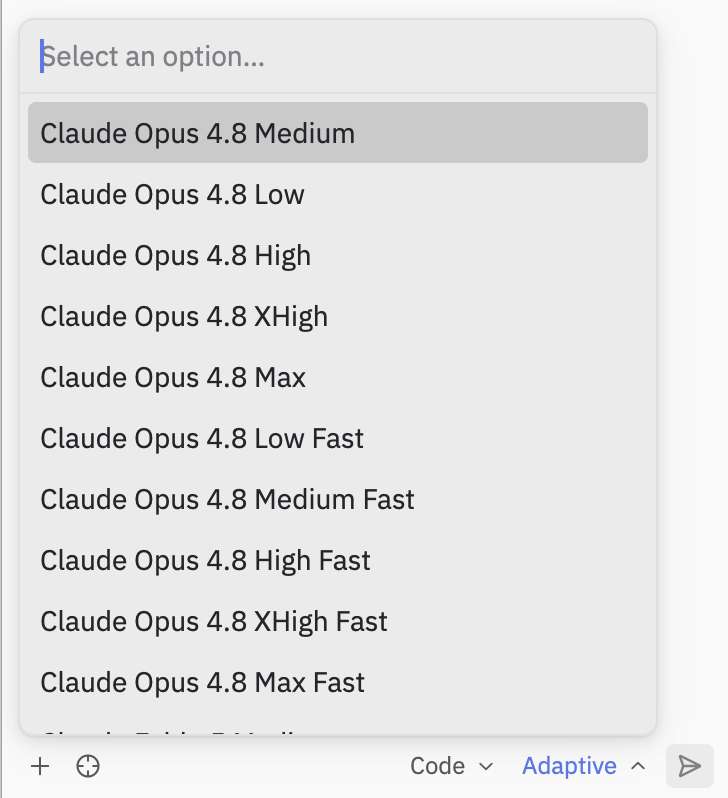
agent.model in your Devin CLI config, or on your organization’s or plan’s default model if none is set. To use Adaptive, which automatically chooses the best model for each task, or any other specific model, pick it from the menu at the bottom of the thread panel.Notes and limitations
- Devin’s slash commands are advertised over ACP, so they appear in Zed’s own command palette — see Slash commands in ACP hosts.
- Devin CLI’s terminal/shell output is surfaced through Zed’s ACP rendering, which differs from the native Devin CLI terminal UI. Some richer interactions are only available in the standalone CLI.
- The
devin acpsubcommand is intended to be launched by an ACP-aware client (like Zed) as a subprocess — it speaks JSON-RPC over stdio and is not meant to be run interactively. Seedevin acpin the command reference.